Thoughts On The MacBook Neo

A palpable hit

The MacBook Neo is a nice piece of kit. If you’re in the market the price is right, the build is very good, and in my first impressions the laptop is a delight. Any of the complaints and concerns you’ve probably read or heard from those who own more kitted out Macs can be easily dismissed. At the moment. I’d venture to say that for the vast majority of everyday computer users the MacBook Neo will be a nice fit.
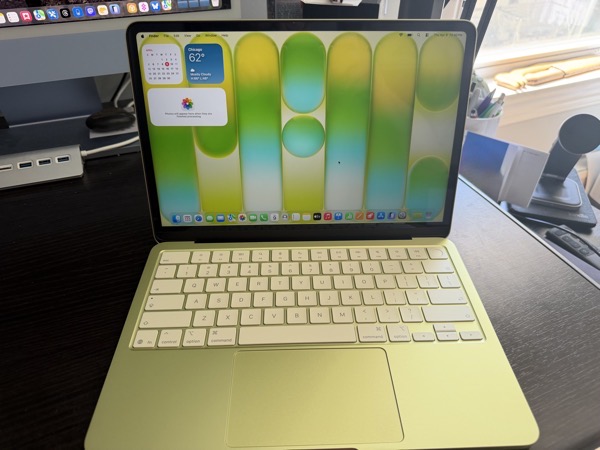
One of the folks I support reached out and said they wanted to obtain one, so I picked one up and did the drudge work of installing the OS update and some of the initial setup last week. We later spent some time together getting it set up the way they like. Moving from an M1 MacBook Air bought in 2022, they opted for a Citrus colored 512GB model with TouchID. The good news is there’s no real learning curve for this client when it comes to features and using the device. There is no bad news.

When I say “in the market,” my client is what I consider one of the perfect customers for the MacBook Neo. A retired senior that began using a computer later in life, later jumping on the iPhone train with the iPhone 5.

They do most of their computing on an iPhone and use a laptop for email, messaging, shopping, FaceTime, and some occasional writing. Occasionally they use Photos on a MacBook Air to manage photos, but still do most of that on an iPhone.

Of the fancy new features Apple has released over the last few years the only one they really rely on is seeing notifications from their iPhone on their laptop screen when they are using the laptop. There’s a currently a problem with that, which I’ll address later.

Given their computing needs and desires, they could probably get by without a laptop, but due to decreased finger flexibility, they feel more comfortable using a laptop for apps like Messages and Apple Mail when they are home. The only thing they connect to a port is power.

Hardware

As to the device itself, it feels great and a bit whimsical. As a MacBook Air user (13-inch, M4) I have to say that I’d love to see the guts of the Air in this form factor. They weigh the same, and the Neo is slightly smaller, but it feels tinier and more totable. You give up a bit of screen real estate with the slightly smaller display, but there is no notch. Apple may have cut features now considered defaults on the MacBook Air, but it didn’t skimp on the look and feel quality. In my opinion that and the price point are what sells the device.

We’ve long since reached a point where computing devices, whether in traditional form, or smartphones and tablets, all come with so many features that even power users don’t need or use some of what’s possible. Innovation has always curved towards adding more possibilities, as it should. In my opinion, it’s a good thing to flatten the curve a bit, offering products that don’t need all the bells and whistles.

Color

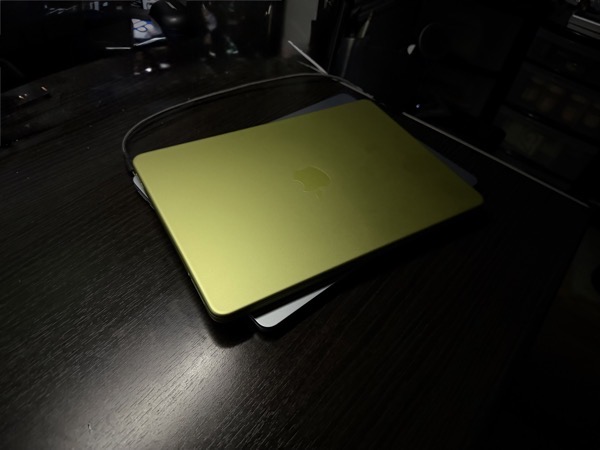
Apple is taking larger steps towards bolder color choices these days, and the Citrus color scheme for the Neo certainly is another big stride into that orchard. I personally wasn’t that attracted to it when it was unveiled, but after having the Neo around for a bit, I have to say that it not only adds to the novelty, but makes the tool feel a bit more fun. At night under a desk lamp the damn thing gives off an almost otherworldly glow.
One of Apple’s trends of the last few years is to match up UI color schemes and themes with the color chosen for the hardware. Highlights, buttons, and some text reflect and complement the color of the shell. The tinted keyboard of the Neo takes that a further step forward on the fun factor scale. That said, the citrus Neo’s color scheme, bold as it is, often leaves some text harder to read, certainly for older eyes.
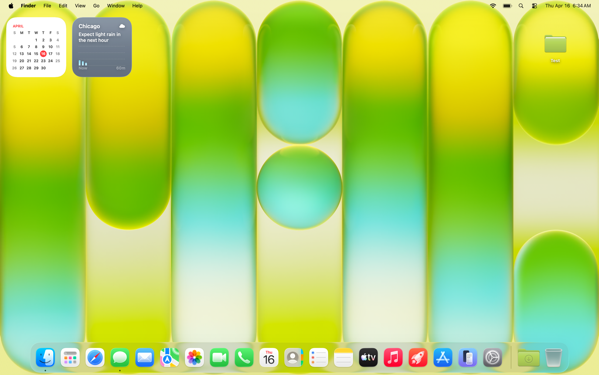
We settled on choosing the dark version of the Citrus wallpaper for my client to solve this.
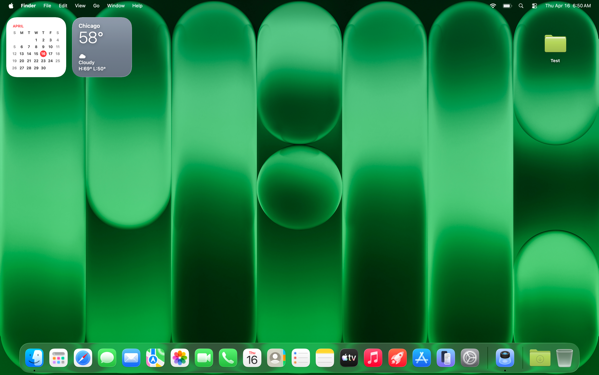
Another example of hard to read text with this theme.
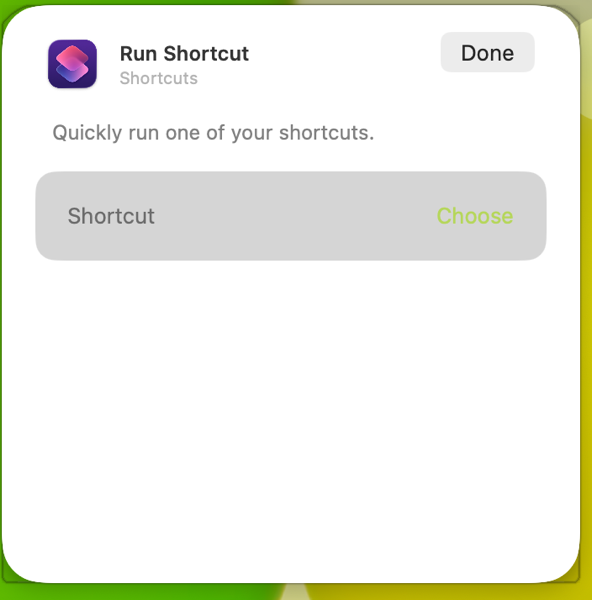
The A18 Pro Chip

Apple raised eyebrows announcing and releasing this new laptop powered by an iPhone chip. An older and binned A18 Pro chip. In my limited time with the Neo I haven’t noticed anything but good performance.

I’ve heard and read others state that the setup process was slower than they have experienced on M-series Apple laptops. That wasn’t my experience. Things moved along readily enough If you count the number of times you have to accept and click on permission popups as something that’s desirable in an out-of-the-box experience. But that’s unfortunately true of any of Apple’s computers.

Again, I’m experiencing this only through setting up and doing a few tutorials for my client, but the performance I’m seeing feels more than adequate to met their needs.

One thing I did notice throughout my hands on time is that the Neo takes longer to connect to a WiFi network than either my MacBook Air or iMac (both M4 devices.) In fact, it feels very much like how long an iPhone sometimes does connecting to WiFi when rebooting. That makes sense on a smartphone when a device immediately connects to a cell signal, but in an age when everything is expecting an Internet connection one way or another, (on setting up a new device one of the first things required is to establish a WiFi connection) it seems like there should be a way to not start reaching out on a previously set up, non-cellular device until after a connection is made.

Battery Life

Setting up any new computer or smartphone puts a load on battery life. That continues during the first day or so after initial setup as things sync up. After performing the first OS update I didn’t use the Neo much until after my client was with me, but even after continuing setup and tweaking a few things there was 68% battery life left. Time will tell how that goes, but given my client’s usage I don’t anticipate them having battery life issues.

Memory Management

Much was also made about the one size fits all 8GB memory cap, regardless of the storage model one chooses. My client doesn’t run a heavy load of applications or keep many tabs open, so I’m not the best judge of how good the swapping out of memory to the SSD works. Apple’s Unified Memory Architecture seems to be working as designed in my limited view. I do wonder how well it does with devices that only have a 256GB SSD if they contain a lot of data.

Screen Size

I prefer the More Space option on displays I use. My client prefers the default view. Even with More Space selected, the Neo feels very much like a one app at a time computer to me, which generally lines up with my client’s needs. I always set up a Hot Corner Shortcut with Mission Control to make window navigation easier, and that feels more necessary on the Neo in the default display mode.
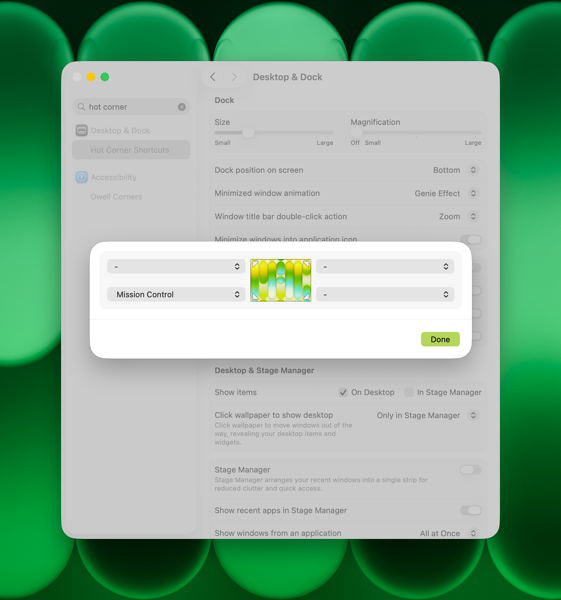
Apple has a feature that allows you to click the wallpaper and move all open apps off of the screen. You can choose to do this all of the time, or only in Stage Manager. I don’t recommend Stage Manager to my clients, and I typically recommend turning off the click wallpaper to show desktop feature. In this case my client likes this fly away feature, and sees it as a bit of whimsy. Even though they prefer to keep the Dock and Menu Bar always visible. So we’ll leave it on.

Trackpad

The Neo has a different trackpad than other current MacBooks. From what I’d read previously I expected to feel more of a difference between it and the trackpad on the MacBook Air. There’s a difference certainly, but it doesn’t feel like that big of one to me. I moved back and forth between the two devices without even really thinking about it.

Notifications from iPhone

I mentioned an issue earlier with iPhone notifications flowing through to the MacBook Neo. This is a feature I use myself. It’s set up through iPhone Mirroring, which you have to open at least once in order to set up.
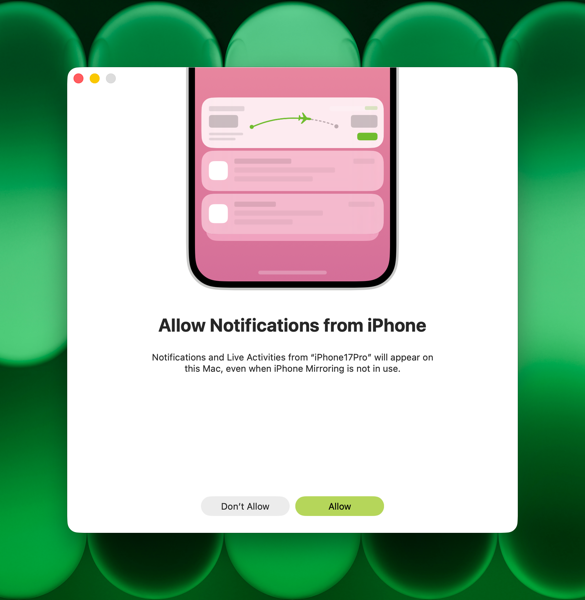
One of the nifty things about this feature is that you’re allowed to pick and choose which notifications flow through and those you block either on your iPhone, or on your Mac. If you choose to use this feature and set it up, you’ll see an option in your Mac’s settings to allow these notifications.
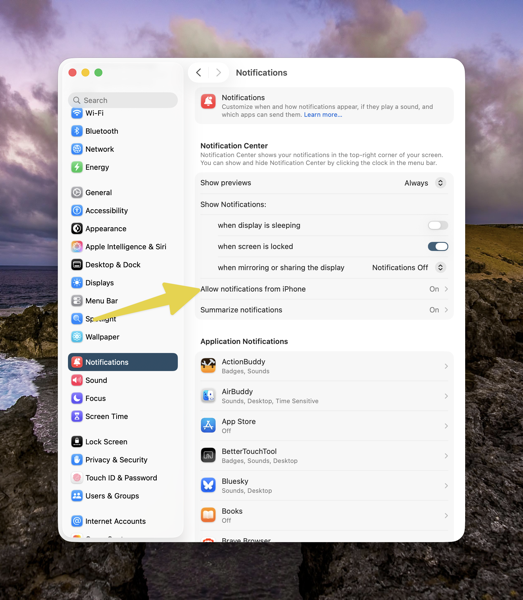
CleanShot 2026-04-15 at 16.49.

If you click on Allow Notifications from iPhone, you’ll be taken to another screen. Below the three Allow options here, you’ll see a list of any notifications you’re allowing to flow through or not from your iPhone, and whether you’ve turned them off on your iPhone, or they are coming through from an app installed on your Mac. As a reference, the screenshot below is from my iMac.
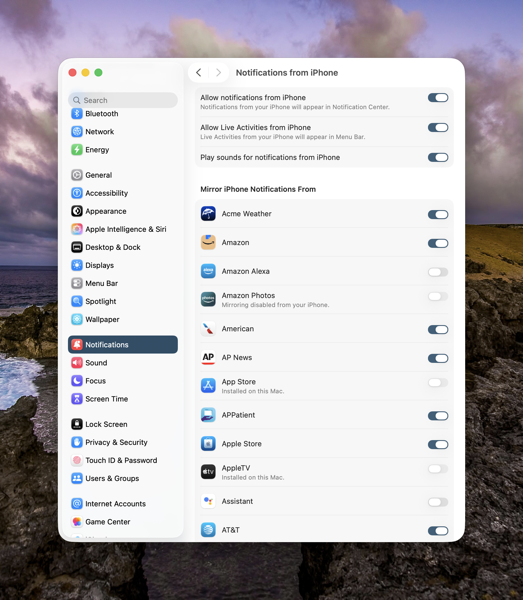
CleanShot 2026-04-15 at 16.48.

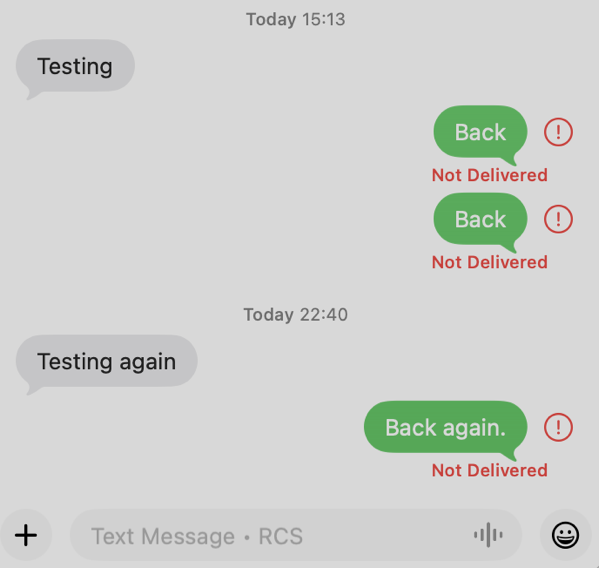
On my client’s Neo, no apps appeared initially. The section above that begins with Acme Weather is blank on their Neo. There shouldn’t have been many. Regardless none were there. We called Apple Support and opened a ticket. Luckily on the first call we got a senior advisor who understood the issue. After doing some checking the situation turned into something Apple is really interested in tracking down. These are a new line of devices after all. So we were off into the land of running sysdiagnoses. We’re expecting a call back on Friday with any discoveries or solutions Apple may have come up with. Fortunately we have time still left in the return window.

At the Moment

In the opening paragraph of this post I also used the phrase “At the moment.” Two thoughts there.

First, as I’ve described my client, they are not a heavy laptop user. Those who might be looking into the MacBook Neo who are, might have a different experience in both the short or long term. I’ve never yet met a computer that doesn’t slow down over time. I doubt the MacBook Neo will be any different. The difference in any performance degradation between the Neo and other Mac laptops is yet to be seen. My hunch is this first MacBook Neo will still be a winner for at least a few years, certainly if you’re a not a heavy user.

Second, the rumors are that the Neo is such a success that Apple might be running out of the binned A18Pro chips it’s using to power the MacBook Neo. Speculation on what happens if that’s true is rampant, and who really knows. Current demand has already caused a delay in shipping times, and I know that secondary retailers Walmart, Target, and Best Buy have plenty of signs, but very limited or no stock. My hunch here is that Apple will be selling MacBook Neos for quite some time, even though it might take you a while to get your hands on one.

Summing Up

To conclude, let me say that I’ve thought since Apple’s announcement of the MacBook Neo that it would prove to be a hit and a palpable one to the laptop market in general. In my brief experience setting up this one for my client and seeing their delight at the form factor, coupled with the high demand, I’ll more than double down on that thinking.

Personally, as I anticipate my computing needs becoming less in the more quickly than I’d like years to come, I could easily see myself relying on a MacBook Neo in the future.

You can also find more of my writings on a variety of topics on Medium at this link, including in the publications Ellemeno and Rome. I can also be found on social media under my name as above.

Looks Like Thaw Will Be A Good Menu Bar Manager Solution For Mac OS 26

Melting the Ice

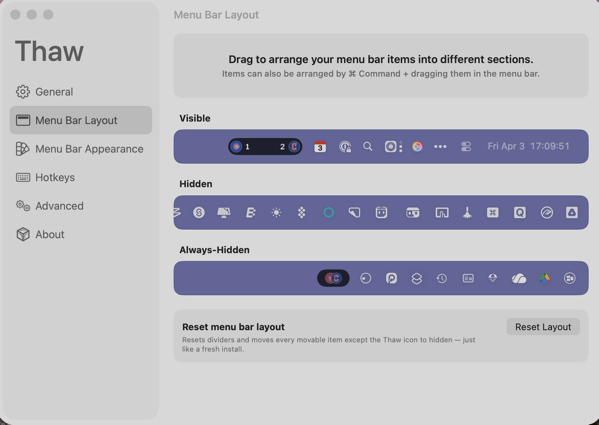
I use a lot of Menu Bar apps on my Macs. It looks like I may have found a new solution to managing those apps.

CleanShot 2026-04-03 at 17.10.

I had previously used Bartender to manage those, especially on the MacBook Air with a notch. But since the release of macOS 26, Bartender had run into some difficulties. I gave macOS 26’s new way of handling Menu Bar items a try, and that just didn’t work for me. I experimented with a few other Menu Bar managers and for a while settled on Ice.

Like Bartender, Ice also had its issues, and its developer has since halted updates. Turns out there’s an app that melts those issues away. It’s called Thaw.

Thaw, created by stonerl, is an open source fork of Ice, so much of what it offers is familiar and you can import your Ice settings. This article by Jannis explains why Ice, and I presume Bartender, ran into difficulties managing Menu Bar items.

So far things are working as expected. The idea is to hide Menu Bar icons that I don’t access frequently, yet make them available with a quick cursor flick to the Menu Bar.

As a side note on this, with the debut of macOS 26, it appeared Apple made was beginning to shift users away from using Menu Bar apps, favoring the Control Panel instead. I could easily get on board with that shift, but very few apps I use actually make Control Panel access available without creating a Shortcut to launch the app. That seems like a waste of time, but perhaps more apps will make accessing them through the Control Panel possible when we move to macOS 27.

You can also find more of my writings on a variety of topics on Medium at this link, including in the publications Ellemeno and Rome. I can also be found on social media under my name as above.
 

Nikita Prokopov Takedown of macOS Tahoe Icons Is Iconic

Apple should be embarrassed. It won’t be.

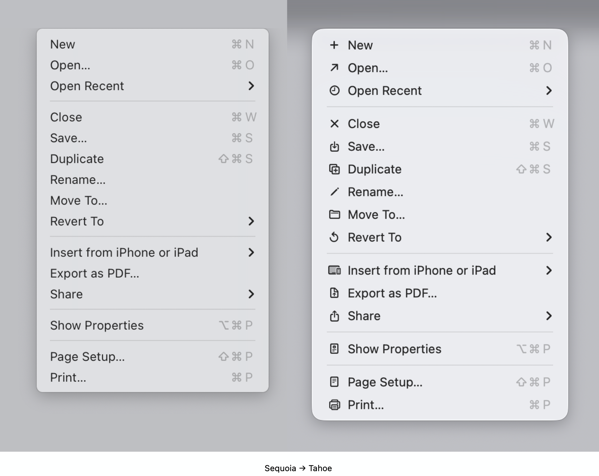
Nikita Prokopov takes Apple’s macOS Tahoe designers to task over their use of icons in menus in a a terrific, yet saddening post called It’s Hard To Justify Tahoe’s iCons. It’s an iconic takedown over what I also find an unnecessary and distracting visual change in Tahoe. Set aside that I think it’s unnecessary and unattractive, it’s just implemented so poorly it makes me wonder how many resources Apple devoted to something this poorly done, and how many more resources it will have to devote to hopefully cleaning it up.

CleanShot 2026-01-05 at 16.39.47@2x.

Prokopov’s post is filled with examples that points up inconsistencies and confusing metaphors. It is illustrated extremely well with enough examples that anyone at Apple should find the cataloging of it embarrassing.

In his conclusion he states:

In my opinion, Apple took on an impossible task: to add an icon to every menu item. There are just not enough good metaphors to do something like that.

But even if there were, the premise itself is questionable: if everything has an icon, it doesn’t mean users will find what they are looking for faster.

And even if the premise was solid, I still wish I could say: they did the best they could, given the goal. But that’s not true either: they did a poor job consistently applying the metaphors and designing the icons themselves.

It’s well worth a read, but I tell you this, as bad and as distracting as I thought this macOS Tahoe design feature was, Prokopov’s post is full of so many examples that it actually makes Apple’s choices even more distasteful.

(Image from Propokov’s post)

You can also find more of my writings on a variety of topics on Medium at this link, including in the publications Ellemeno and Rome. I can also be found on social media under my name as above.
More Thoughts and Issues With macOS 26 Tahoe

Unfinished Tahoe is not a friend to developers or users

I wrote a bit earlier about some of my early thoughts on the new OS 26 releases and here’s a few more to share about macOS 26 Tahoe. I continually beat a drum about the fact that we’re all on Apple’s beta bus, whether we opt in to receiving betas or not. I don’t opt in. Several of these thoughts keep that percussive refrain rumbling along through the issues below.

MacOS 26 Tahoe purple.

Memory Leaks

Since the release of macOS Tahoe 26.0.1 I’ve seen strange memory leaks increasing for what I think are odd reasons. For example, a process known as IconServicesAgent increases the longer I go between rebooting sessions. According to documentation I’ve found online, one of the causes of this can be an overly large or corrupted icon cache, or specific icon causing the problem. A solution is to clear the icon cache, which I’ve done, but the problem reoccurs.

I don’t have the expertise or the patience to tray and track down which icon(s) may be the issue, so hopefully this gets fixed in an upcoming release.

CleanShot 2025-10-17 at 09.35.13@2x.

My hunch is this has to do with icons being a lower priority for developers who still have a lot of other work to do on their apps. I base that on the number of non Apple app icons I see that haven’t been updated for Liquid Glass.

Notifications Memory Leak

There’s another memory leak that I see less frequently and seems a bit more random. You can see in the image above the amount of memory NotifcationsCenter is consuming. Apparently this “occurs when a program holds onto references to objects, like activities or other resources, even after they are no longer needed, and uses the notification system as a way to do so.”  It’s tough to pin down whether these memory leaks are the fault of developers hindered by Apple’s choices, or just a system bug. Either way it’s far from optimal.

Again, I don’t have the expertise to sort this out, so I’m hoping for a fix in an update down the road.

Notification Summaries

Prior to macOS 26 Tahoe I had long ago turned off Apple Intelligence’s Notification Summaries on macOS Sequoia. I turned them back on with this new release to see if things improved. They did not. In my experience they are just as bad and just as useless as they were previously. So I’ve turned them off again.

Liquid Glass, Corners, and Such

I find the general acceptance that Apple made Liquid Glass less of a priority than it did on other device platforms amusing because it’s not only true, it’s true in the way a red wine stain shows up on a white shirt or blouse. That said, the somewhat half-way approach we do have, while not a deal breaker, is becoming increasingly more visually annoying.

CleanShot 2025-10-17 at 16.19.10@2x.

The lack of contrast for Sidebars always jerks my attention away when I have a sidebar open because for someone who once had real vision issues due to cataracts, it triggers a flashback to when I first started noticing those since corrected eye issues. The screen shot above makes it look like there is greater contrast than what I see in actual practice.

I’m also just not buying the entire concept of bringing “more focus to content.” Again, it’s more distracting than focusing. The more I see it the more distracting it becomes, which I’m guessing is antithetical to what Apple’s designers were hoping. This is true on iPhones and iPads as well.

CleanShot 2025-10-17 at 16.20.14@2x.

Widgets

This is one instance when the drum beat of bad beta behavior sounds loudest. Again, I do not run betas on any of my devices. Yet, each time that Apple releases a beta for the next version of macOS 26 all of the widgets I use on a secondary screen will disappear the morning before the release. I can set my clock by it. I’ll go to the trouble of restoring them. Within the next day or so duplicates of those widgets will appear, but strangely now revealed under Notifications.

CleanShot 2025-10-17 at 13.11.28@2x.

At first I deleted the duplicates but after this week’s beta release I noticed that they eventually disappeared on their own. It’s odd behavior to say the least.

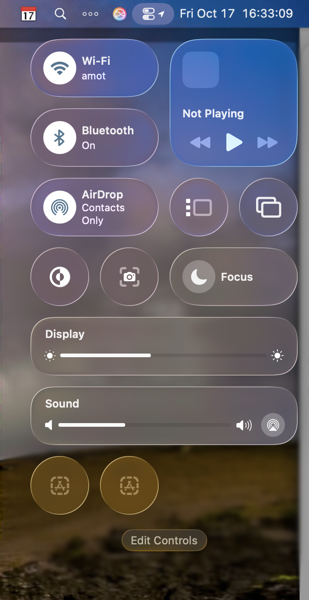
Control Center

Speaking of Control Center, Apple is obviously hoping to move a lot of what functionality available in Menu Bar icons into the Mac Control Center. Apple has provided an API for developers to make that possible so that user can access those functions from the Control Center instead of the Menu Bar. I have very few apps that have taken advantage of this so far, again speaking to the slow pace of adoption by developers with other priorities.

CleanShot 2025-10-17 at 16.33.03@2x.

Even so, the two I have placed in the Control Center are sometimes present and sometimes not. To my surprise they appeared this morning. Not surprisingly they do not appear this afternoon, merely showing a place holder.

Control Center Notifications

Apple moved Notifications for things like Bluetooth and WiFi connections, volume sliders, and other functions so they animate out of the Control Center. That means they pop out in the upper right hand corner of the screen. That said, I find when they do animate they either distract me from what I’m doing, since I’m typically looking at the center of the screen, or my muscle memory of looking for them in different locations causes me to miss them entirely.

CleanShot 2025-10-17 at 16.39.54@2x.

The beta drumbeat pounds on

It’s been obvious since the release of macOS 26 Tahoe that Apple has a lot of work still to do. Some of that obviously was by design due to time and resources. Fine, but not fine. You can’t expect high performance out of a F1 race car unless your pit crew can nail the basics. As it currently stands Apple has its shiny new car well polished for pictures and demos, but is obviously still behind with its own engineering, throwing more delays at developers in the pit, in turn leaving users wondering about the turns ahead.

I frankly don’t see these gaps closing until sometime next spring at this point. Just in time for Apple to begin shifting resources to whatever comes next. I find that sloppy, unsettling, and like a lot of things Apple-like, not very Apple-like these days.

You can also find more of my writings on a variety of topics on Medium at this link, including in the publications Ellemeno and Rome. I can also be found on social media under my name as above.
OS 26 First Impressions

Early thoughts on OS 26 versions

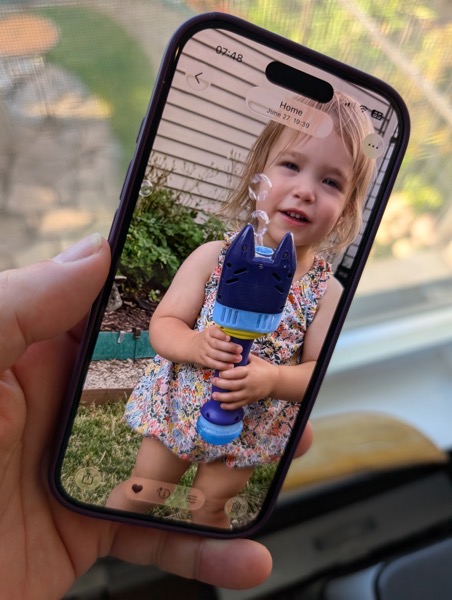
Bubbles. My grandkids love bubbles. It’s a kid’s delight. Apparently bubbles also delight some Apple designers. My first impression of the look of iOS 26 on the iPhone was bubbles.

PXL 20250916 124836790.

I watched the OS 26 round of operating system betas over the summer as things evolved and have now installed the first release on all my devices. I’ve seen and heard the reactions so I was reasonably prepared for what would happen once the updates occurred. These are some first impressions after taking a look.

Liquid Glass

I’m not putting down bubbles. Bubbles are fun, whimsical, and joyful. But my overwhelming impression on the iPhone 16 Pro with iOS 26 installed was that the Liquid Glass design language, (that supposedly isn’t a design language,) felt very bubbly and child-like. To my eye I associate it more with bubbles than I do glass, liquid or not.

I also thinks Liquid Glass looks and feels better on the iPad Pro than it does on the iPhone. There’s more space for the chunkier, bubblier UI elements to float around. By and large things look cleaner on the iPad.

On the Mac, Apple didn’t go quite as far with Liquid Glass as they did with the iPhone and iPad regarding transparency and bubbly things, but there is still a more cartoonish feel to macOS 26 than the previous version. I think most of that is due to the rounded corners, rounded buttons and tab bars. I will say in this early going, I miss what I felt was a cleaner design in Sequoia on the Mac than what I see in this early going with Tahoe.

Bubbles are also messy things. Messier than glass in solid form certainly. Perhaps applying liquid properties to this glass like interface provides a license to keep things messier. That’s certainly true in some cases on the iPhone. For example, in the Phone app the reflective (or is it refractive) qualities around the buttons make it feel like light is leaking through a misapplied sticker than I think was the intent.

New Shareshot.

On both the iPad and the iPhone you’ll have to be careful what you choose for a wallpaper, because that same light leaking through means photos that have many colors or light contrasts within them appear more distracting than pleasing. (I like to use my own photography for wallpapers).

New Shareshot.

The issues of legibility have been discussed quite a bit over the summer, and I don’t think Apple has a complete solution for that yet when it comes to complex backgrounds, other than seemingly to force users to make simpler choices with wallpaper backgrounds. In early use, I think what we see on iPhone and iPad completely renders useless the statement of letting your content shine through. It might bleed through, but if it shines it does so in a distracting manner.

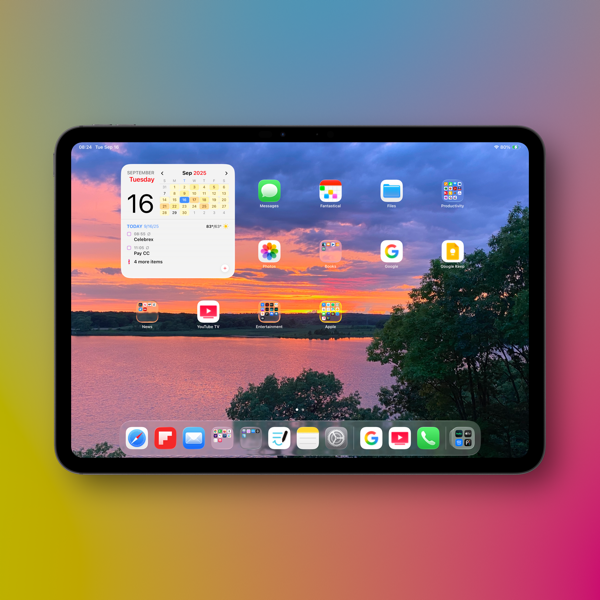
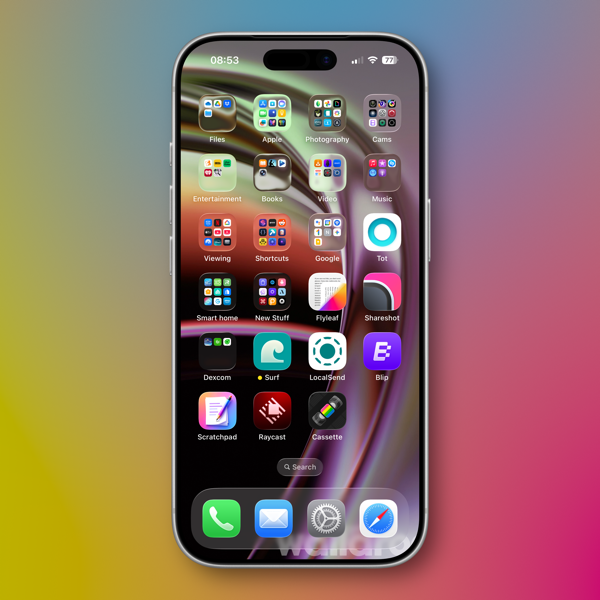
Here’s an example of one of my Home Screens that I think makes things look more bubbly than Liquid Glassy, especially in the upper two rows of folder icons.

New Shareshot.

Alan Dye, the VP of Human Interface Design, the Apple guy who spearheaded this UI change, is quoted as saying that Liquid Glass is “the foundation for new experiences in the future.” All well and good when you have a fuller view of the future as one assumes he would. But for those looking at their devices today, that means as much or as little as any tech promise or vision that have been dropped on us these last few years.

Liquid Design, in my very early looks is not to my taste. It may be to yours. the good news is that everything still appears to be functional. But to me, it’s a child-like appliqué on sophisticated devices that seem to beg for something more mature. I’m sure Liquid Glass will evolve, but until it does, I don’t think these bubbles will be popping soon.

Other Changes

I haven’t explored many of the new features of any of these new operating systems, only attempting to get things up and running. Most things appear to be running well.

A few changes I like include:

I prefer this iteration of the Photos app in iOS

I like the big multi-tasking changes for iPad and look forward to working with them more, although count me as one who will miss Slide Over. It was handy in my work in rehearsals.

I like the new Trash Can icon on the Mac. That’s the kind of whimsy I can support.

CleanShot 2025-09-16 at 07.18.24@2x.

I love the wrist flick gesture on the Apple Watch.

Things I’m not a fan of:

On the Mac I miss the Shortcuts item in the menu bar. Yes, you can add one, but instead of getting a straight drop down of clickable Shortcuts, it now opens a new window that requires not only the selection of the Shortcut you want to execute, but another separate action to run the Shortcut. Adding clicks isn’t much of a shortcut to me.  I see where Apple is going with this, trying to move things out of the Menu Bar into the Control Center. That’s going to require developers to make that move successful.

CleanShot 2025-09-16 at 10.04.19@2x.

I’m not a fan of some of Apple’s redesigned icons.

I tried out the Tinting feature for icons. I could see myself using this, if the feature didn’t tint widgets. What’s the point of a tinted Photos widget?

New Shareshot.

Some things I’m on the fence about:

I’ve previously used independent apps Bartender and Ice to control the large number of Menu Bar icons I like to have available. Both are currently in beta so I’m testing out Apple’s  feature to hide the Menu Bar until things change on those fronts. Simply put, that means the Menu Bar disappears until I hover over or click on it, revealing the icons. In using this feature when windows are at the top of the screen, Menu Commands sometimes disappear requiring some window rearrangement. This doesn’t happen consistently, so I’m guessing it’s a bug. I’m not sold on this in the early going but I’m giving it a try.

I’ve been using Raycast as an application and Shortcut launcher, along with some of its other features. I’m giving Apple’s new Spotlight features a try including the long overdue Clipboard Manager. This will require some muscle memory retraining, and it might mean leaving Raycast behind. It would be easier to do so if that Clipboard Manager copied across devices.

It’s early going. For me, as well as these new operating systems. I’ll discover more as I go along. I’m hoping the evolutionary pace for this software from Apple and most certainly developers will come close to matching mine in the days to come. I’m guessing it’s going to be sometime in 2026 before we can really evaluate what’s what in these OS 25 releases.

You can also find more of my writings on a variety of topics on Medium at this link, including in the publications Ellemeno and Rome. I can also be found on social media under my name as above.