
Blood Glucose Monitoring on the Apple Watch Is Probably A Long Way Off

The annual hope and hype cycle

Every year as we near Apple’s iPhone and Apple Watch announcements rumors circulate and recirculate about Apple including a blood glucose monitor for the Apple Watch. It would be great if that happens someday. In my view it’s probably a lot further off than most of those hoping it happens want it to be. Here’s why I think that.
I’m a Type 2 diabetic. Checking my blood sugars has been a part of my life for 14 years or so. I’m painfully familiar with the prick your finger method and relied on it until a new endocrinologist prescribed a Dexcom G6 sensor. I’m now using a Dexcom G7 sensor. I don’t use an automatic insulin pump, just the sensors for monitoring via my iPhone and Apple Watch. I treat my condition with injected medication, both insulin and GLP-1.

The Dexcom sensors (both generations) were indeed a plus in my life as they provided a better way of monitoring, allowing me to better gauge diet and exercise, which will always be the biggest part of any diabetic’s regime.

But neither Dexcom model was a fire and forget it solution. There are times when I have to check my blood sugar with a finger prick because there are so many variables that can affect your glucose levels. The Dexcom system does provide a method to calibrate and recalibrate based on actual readings from a finger prick. I experience periods when I don’t need to recalibrate often and periods when I do.

If I’m traveling for a more than a day or so I have to pack my kit for finger pricks, because travel can be one of those variables. An inadvertent bump of the sensor on my arm can throw readings off for the remaining life of that sensor. (You have to change to a new sensor every 10 days.) AND to be frank, the tech is still far from perfect. Sensors fail occasionally and, as is the case with all tech that fails, it happens at the most inappropriate time.

Dexcom’s sensors are classified as a minimally invasive medical device. The device inserts a small filament under the skin, and yes it feels like a small needle insertion. That filament takes its reading from the interstitial fluid between cells. It does not read directly from the bloodstream. The device is held on by an adhesive patch.

When Dexcom introduced its Apple Watch app it was a decided monitoring improvement over the iPhone App which I viewed via a widget on my iPhone Home Screen. The iPhone widget far too frequently needed a touch of the screen which opened the app to update the reading.

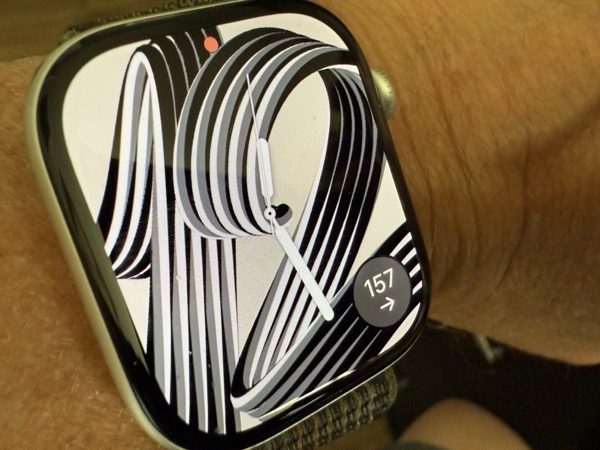
The Apple Watch app offers a complication that displays data more consistently, needing less frequent touches to refresh the readings. (The complication is visible in the photo above showing a reading of 157.) That said, the Apple Watch tends to disconnect too easily from the sensor, defaulting back to displaying readings from the iPhone when that occurs.

I also find that the Apple Watch app reading is more current than what the iPhone is showing, but you do still need the iPhone app to communicate readings with your endocrinologist.

In some instances I’ll need to reboot both devices to reconnect things up on both my iPhone and Apple Watch. Dexcom technicians have told me these disconnections have to do with Bluetooth connection issues and are subject to the same vagaries and variables that exist with many other Bluetooth connections. I also need to be aware of which arm I have the sensor attached. I wear my Apple Watch on my left arm and if the sensor is on my right arm there will be more frequent disconnections. I don’t sleep with my Apple Watch on, so waking in the morning requires a waiting period for the watch app to reconnect.

The goal behind the push to include blood glucose monitoring on an Apple Watch (or any other smart device) is obviously to cut down on the need for finger pricks and possibly the use of minimal invasive medical devices. But also, in theory an on device sensor communicating directly with watchOS should show readings more consistently and be much less subject to the vagaries of Bluetooth connectivity.

I certainly can’t prejudge any new system or technology that hasn’t surfaced yet. Certainly I’m one who hopes Apple or some other company can eventually tackle this issue and provide a workable solution. That said, convenient as this annual rumor always seems to be, I believe blood glucose monitoring on the Apple Watch is a lot further off than most hope or think it might be. I’m also reasonably sure that finger pricks will still be needed if for no other reason than to calibrate sensor readings with actual blood glucose levels.

You can also find more of my writings on a variety of topics on Medium at this link, including in the publications Ellemeno and Rome. I can also be found on social media under my name as above. 

Scott Hanselman’s TEDx Talk On The Promises of Technology

Worth your time to give this a watch

Scott Hanselman is a someone I’ve followed for quite some time. I’ve always found his insights on technology and the intersection technology has with humanity to be valuable and that they make me think. Strange that I think of it has an intersection, given that technology wouldn’t exist without humans.

 I recently saw he that his TEDx talk titled Tech Promised Everything. Did It Deliver?

Scott breaks down the three promises of technology into Connection, Convenience, and Creativity. I won’t hint at where the talk goes, you should watch it for yourself.

As an intriguing side note given the subject matter I found in remarkably inconvenient that WordPress decided to do some sort of work on their backend as I went to publish this post. Technology is great when it delivers, right?

Regardless, what Scott has to share is excellent stuff and highly recommended. 

You can find more of my writings on a variety of topics on Medium at this link, including in the publications Ellemeno and Rome. I can also be found on social media under my name as above. 

The Action Button: Taking Back Your iPhone

Lights! Camera!! Action!!! Well, you won’t be directing a film crew with it, but you can use the Action Button on Apple’s new iPhone 15 Pro and Pro Max models to turn on your lights or launch your camera. As I said in my first impressions post about the iPhone 15 Pro it can be so much more.

Iphone 15 action buttonIn fact, for those who already use Apple’s Shortcuts or those willing to check them out, this is a way to take a bigger step towards personalizing your iPhone than we’ve been able to in the past. In my opinion it’s the most signficant, and potentially most powerful user addressable hardware change Apple has made to an iPhone in quite some time.

Unlike The Dynamic Island, last year’s big shiny new feature, users don’t have to wait for developers to decide to implement the feature. To be honest I’m disappointed in the lack of apps I use that couldn’t find ways to take advantage of the Dynamic Island. But the Action Button, combined with Shortcuts, puts personalization at your fingertips.

When it was first introduced and once I first set up the iPhone 15 Pro my initial reaction was that this would be the latest fidget-spinning, widget-like new feature from Apple. Designed to tantalize, destined not to take hold, it would capture a lot of attention and not really mean much over time. I was wrong.

Again, if you know Shortcuts or are willing to learn a bit about them, you can set up the Action Button to run a Shortcut or quickly access a series of them. The beauty of using the Action Button with Shortcuts is that you can perform actions without unlocking your phone, or while you’re in any app. It sort of feels like taking your iPhone back and using it in a whole new way.

The Action Button is located just above the two Volume Buttons. It replaces the Mute switch that has been there since the first iPhone. Don’t worry, you can still Mute your iPhone with the Action Button or from the Control Panel. As a matter of fact the Action Button comes with the Mute/Unmute function enabled by default. Press it once after setup and you’ll Mute your iPhone. To use the Button you need to hold the Action Button for a second or two. Otherwise you’ll get a reminder on screen telling you to hold it a bit longer.

Sunday 01 Oct 2023 16 46 43

The location of the Action Button is a bit of a problem for me though. I have yet to develop a natural reach for it with one hand and wish Apple had positioned it below the Volume Buttons.

I take my cues on using Shortcuts with the Action Button from some folks who know more about Shortcuts than I do. I’m no wizard at creating Shortucts, but I know where to go when I need to discover and explore them. Stephen Robles, Federicco Viticci are indeed wizards at this. John Gruber also got me excited about these possibilites. Robles has produced a couple of videos here and here that show you how you can take advantage of using the Action Button to access Shortcuts. He shows you how to create menus and single use Shortcuts. You can find links to all of the Shortcuts he’s created in the description that accompanies his videos.

Gruber created what he calls the Action Jackson Button and posted screenshots of his Shortcuts on Threads. Jake Shaw managed to put those into a blog post here, so you can download them if you want to as opposed to creating them from screen shots.

Viticci has created what he calls a MultiButton method (using Shortcuts) to use the Action Button beyond its current single button press functionality. Apple designed the Action Button to call one action. You can configure it in Settings to bring up Silence your iPhone, Turn on a Focus Mode, Use the Magnifier, Activate the Camera, Turn on the Flashlight, Record a Voice Memo, Launch Accessibility Settings or Run a Shortcut. Viticci lets you tap twice to use the Action Button for two distinct actions. Users have already been calling for Apple to give us mulitple touch possibilities on the Action Button, but this might do in a pinch. (Make sure you also check out the MacStories archive of Shortcuts if you haven’t already.)

Do note that you’ll need to install the free Actions app on your device. Actions doesn’t have an interface but it adds and enables some essential Actions to make better use of Shortcuts than Apple provides out of the box.

You set up your Action Button to use Shortcuts by scrolling through the actions Apple provides and selecting Shortcut. At this point if you want to use one Shortcut you select it and you’re set to go.

Sunday 01 Oct 2023 16 22 16

Currently I’m doubling up on Menu options. Pressing the Action Button as I’ve configured it brings me into a graphical menu of icons (image on the right below) that allows me to Mute/Unmute the phone, Turn on the Flashlight, Launch the Camera, or launch my podcast app of choice, Overcast. I’m a Type II diabetic so the Contour and Dexcom G7 are apps I use to help manage that condition. Then there’s the red icon labled Magic Menu. Note that for this graphical menu option you can only add seven Shortcuts and you’ll always get an Open App button as the eighth entry. That will take you to the Shortcuts app. But why not create a Shortcut that launches another menu?

Sunday 01 Oct 2023 18 21 16

But let’s first get to the graphical menu. Create a folder in the Shortcuts app. Name it with the name of your choice. I chose ActionButton. Then create or move the seven Shortcuts you want to access in that folder. Go to Settings and select Action Button, choose the option presented, and look for the Show Folder option. If I remember correctly it will be on the left if you haven’t set anything up like this previoulsy. Pick the name of the Shortcut Folder you chose and the Action Button should bring it up.

What I call the Magic Menu (you can call it anything you want) is a Shortcut I created that opens up another menu that allows me to quickly access some apps and functions I use frequently. I followed the how to from Mr. Robles as linked above to create the menu you see below. You’ll need to configure each menu item separately.

Sunday 01 Oct 2023 18 22 54

This menu includes shortcuts to access Drafts and Notes which I use for work. Text on Screen captures any text on the screen after first taking a screenshot. Current Show launches into my Notes folder for the current play I’m directing. Cheatsheet is where I store some codes and other things I need to remember. Screen Recording does just what it says. Remind Me Faster lets me enter Reminders into that App more quickly than using the app.

Again, and most importantly this functionality lets you set up things they way that works for you. I’ve seen similar menus that call up Music, Maps, Reminders, certain contacts and many more.

For different projects going forward I’m sure I may change things around, but that’s easy enough to do either by adding to the existing choices or adding more. I’m sure others will find new ways to take advantage of the Action Button as well. Exciting times.

As I said above I am not a Shortcuts wizard. I’ve created some single use Shortcuts but nothing on the level of folks like Viticci or Stephen Robles. Another great resource is Matthew Cassinelli. I highly recommend that if you want to dive deeper into this for the first time or just for great ways to take advantage of Shortcuts that you follow their adventures.