
Tomorrow, September 22, is new iPhone day for a lot of folks. Some will get them delivered. Some will pick them up from Apple Stores. Some will get them from carriers. And once the hype of release day passes folks will still be doing that going forward.
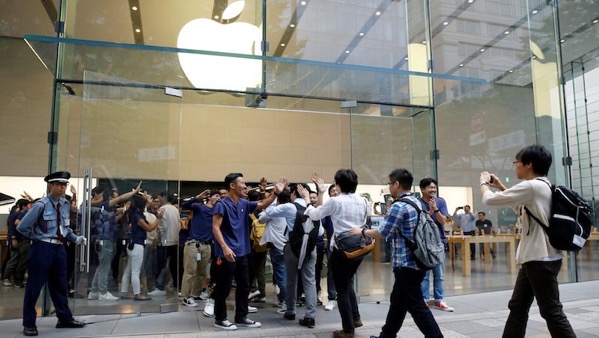
Regardless of how and when you get your new iPhone you have an option to set it up as a new iPhone or transfer all of your data and info from the older one. I typically choose the latter option. Let’s face it, either way you’re going to spend some time setting things up.
One of the things I’ve learned through the years is a way to save some time if you decide to transfer your data from iPhone to iPhone instead of starting with an absolute new setup. Apple gives you options if you’re transferring data. You can choose to transfer your data from iCloud or you can choose to transfer directly between your old iPhone and the new one. Both are time consuming.
The first let’s you get back to business sooner while things continue to load in via iCloud. The latter means you have to wait for the transfer to complete before you can use your new iPhone or trade-in or pass down your older one. Either way, data and Apps will transfer to the new device.
Here’s the tip. Some of your Apps are quite large. If you delete them before you do the transfer you’ll save a considerable amount of time during the transfer process. This is especially true if you’re a gamer and have large games on your device. Garage Band is another candidate. It has over a 1.5 GB footprint for the App itself. If you’ve got an App that has a large footprint on your device that entire footprint has to be transferred to be brought over to the new device.
If it’s a crucial App, obviously leave it alone and let the process do its thing. If it’s not, chances are you aren’t going to be using the App right away after you start using your new iPhone. You can reinstall the App once you’re ready for it after things settle down on your new device. (Another hint: This is a great way to do some house cleaning and delete Apps you’ve probably forgotten are on your phone.)
But what about my data?!? Well that depends on how your App stores and retrieves data. Some Apps use iCloud for storage. That data will in most cases still be in iCloud even if you delete the App. If the App uses its own storage in some other cloud, the same thing typically applies. If your App stores everything locally then this hint won’t work for that App.
If you’re unsure or confused, don’t delete the App. Better safe than blaming me.
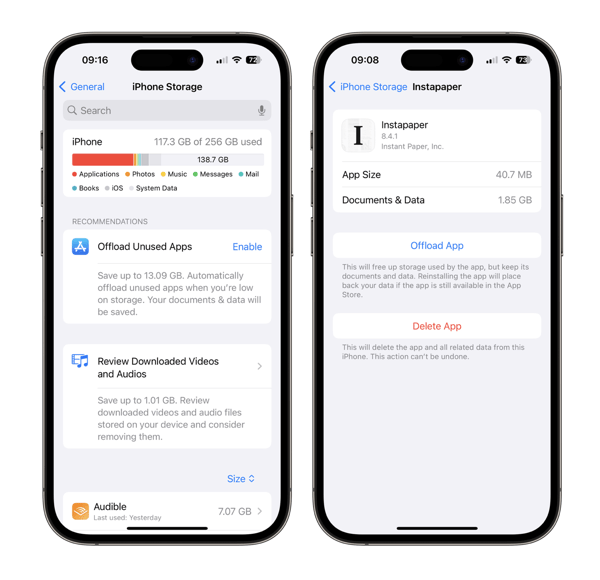 Apple also offers you an option to delete the App and save it’s data. You can find out the size of Apps and their footprints in General/ iPhone Storage.
I typically get rid of about 10-15 gigabytes of Apps and data before transferring things to a new device. That’s a real time savings in the transfer process. And I bring back Apps as I need them after things settle in.
If you delete some apps to cut down the time on transferring from old to new, and you are going to use the iCloud option, make sure you do a backup (Settings/iCloud/iCloud Backup) after doing so. What’s in your latest backup is what will transfer over to your new iPhone.
This tip can really pay off if you’re one, like me, who likes to pick up your new iPhone at an Apple Store. Apple Stores are fun places to hang out and check out new gear. Not so much if you’re stuck standing at a table looking at your old and new devices while your data transfers.
Even if you’re transferring data between phones from the comfort of your home the time savings can be real.

 Life on the Wicked Stage: Act 3